How to duplicate the template
Delivery is automatic upon successful payment. Here's how to add it to your workspace:
- Open the template link you'll receive after purchase
- Make sure you are on the main (top-level) page of the template (do not duplicate from a subpage)
- Click "Duplicate" or "Start with this template" in the upper right corner
- The template will be duplicated into your Notion workspace
That's it — you're ready to start managing your rentals.
Understanding the warning system
The template uses advanced formulas to automatically flag potential booking conflicts:
Appears when a unique item (Total Inventory = 1) is assigned to rentals with overlapping dates. This means you've double-booked a specific unit.
Appears when you've assigned more units than available in your inventory. For example, renting 5 chairs when only 3 are free on that date.
Additional warnings such as ARCHIVED or BAD may also appear depending on the equipment status.
These warnings appear automatically based on the template's built-in availability calculations — no manual checking required.
Historical pricing protection
When you add equipment to a rental, the daily rate is captured and preserved through database automation.
This means:
- You can update equipment prices anytime without affecting past rentals
- Old invoices always show the correct rate that was charged
- Special discounts or custom pricing stay intact
- Your accounting records remain accurate
No more "what did we actually charge them?" — the historical record is always preserved.
Built-in help guide
Inside the template you'll find a dedicated help section with everything you need to get started quickly.
- Step-by-step instructions
- Best practices
- Tutorial videos make setup fast and painless, even for Notion beginners.
Supercharge with Notion AI
If your Notion plan includes AI, you can leverage the Notion AI Agent for powerful ad-hoc queries on top of the template's advanced relational database structure.
While it doesn't change the underlying calculations, it can help answer questions like:
- Which units are currently available?
- What equipment is tied to rentals overlapping a given date?
- Which customers have upcoming rentals?
- Summarize usage of specific equipment
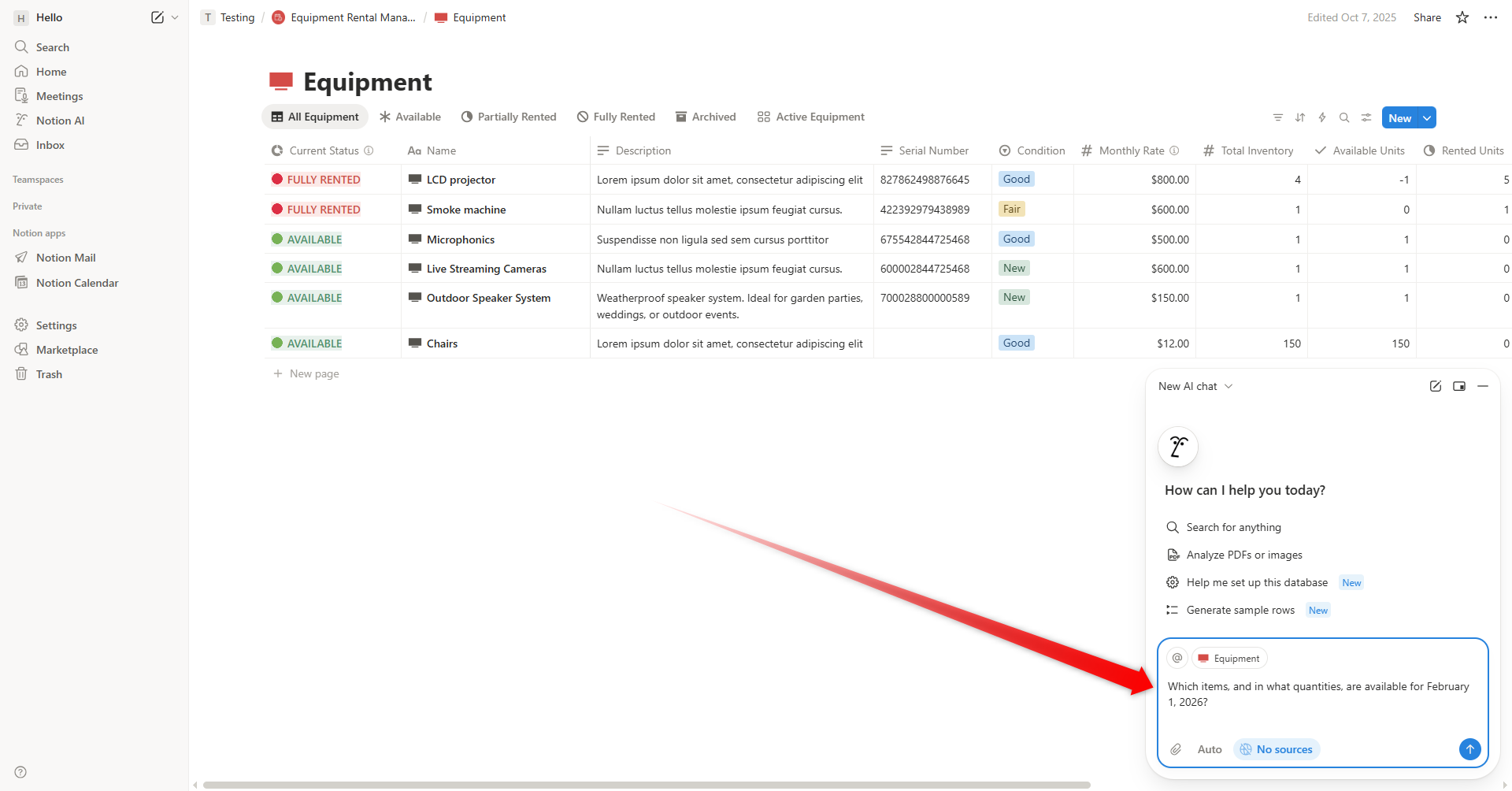
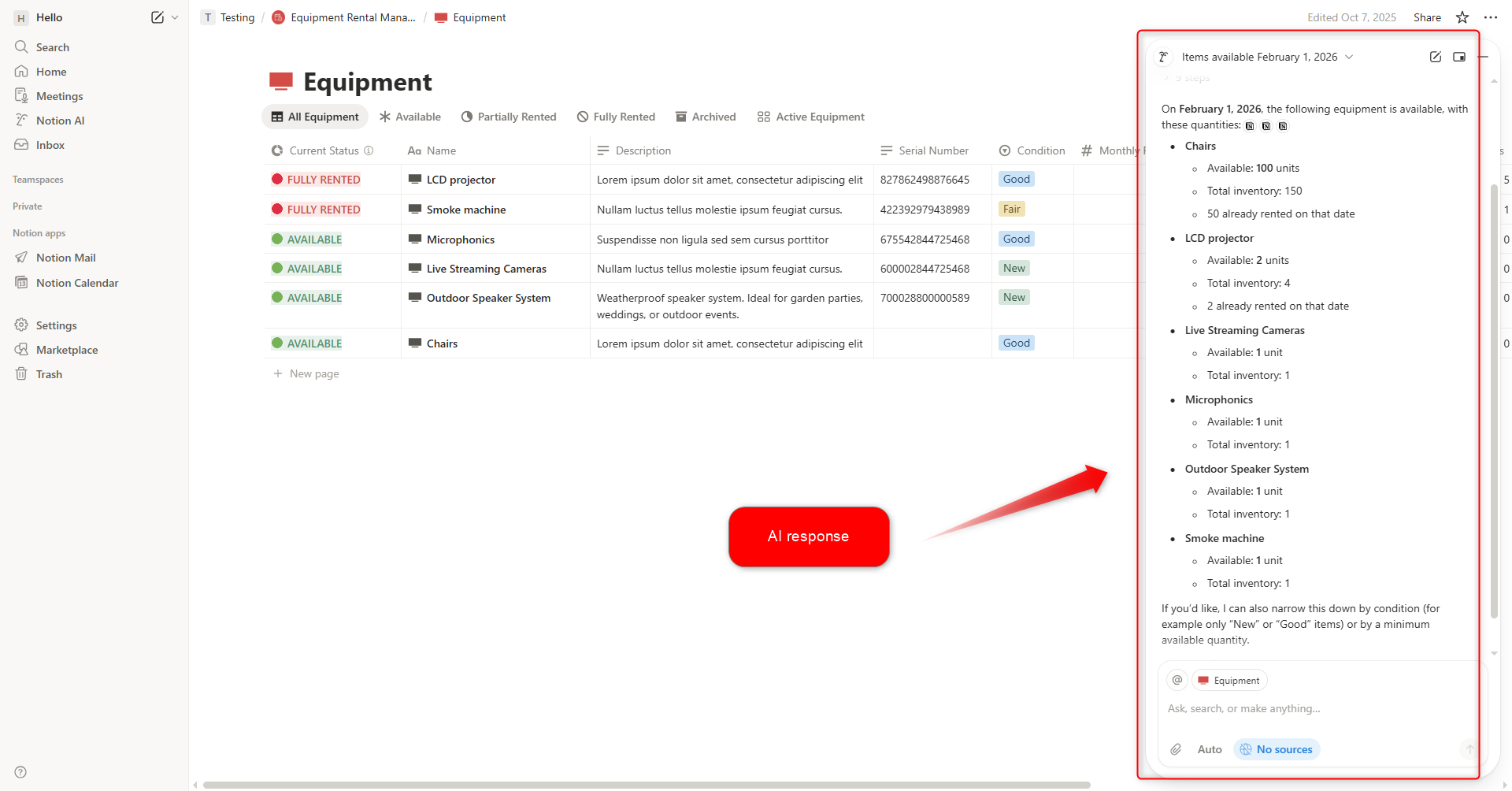
The template's 7 interconnected databases with advanced formulas and relations make AI queries particularly powerful — the more structured your data, the better AI can interpret and respond.
Note: Notion AI is included in Business and Enterprise plans.
When you need more than a template
This template can take a rental business a long way: automatic conflict warnings, historical pricing protection, a fully relational database across 7 linked areas. For a lot of rental businesses, that's genuinely enough.
But some operations eventually need things a Notion template can't do: online bookings and payments for customers, multi-location tracking, or digital inspection reports with e-signatures. If that's where your business is headed, take a look at Rentarize, dedicated rental management software.